


Imagine you’ve just updated Moodle and something isn’t working as expected. Or that a teacher accidentally deletes a course or some activities from a course they’ve been preparing for months. It’s even possible that a server issue could make part of the platform inaccessible.
When situations like these arise, it is necessary to act quickly. Data loss or service interruptions can have a direct impact on training, the user experience, and the organization’s daily operations.
For this reason, backing up data in Moodle should not be a one-time task, but rather a routine practice in the management of any online learning platform.
In this guide, we explain how to create backups in Moodle, the different types of backups available, and the best practices you should follow to protect your courses and data.
Why is it important to back up Moodle?
A backup allows you to recover data in the event of errors, technical issues, or unintended changes within the platform.
In addition to protecting the work done by teachers and administrators, having an adequate backup strategy helps to:
- Prevent the loss of educational content.
- Recover courses that were deleted by mistake.
- Restore the platform after a failed update.
- Migrate courses between different Moodle installations.
- Ensure the continuity of training.
If Moodle is part of your organization’s daily operations, having up-to-date backups is just as important as keeping the platform up to date.
Moodle backup types
Moodle allows you to create different types of backups depending on each organization’s needs.
Backing up a course
This is the most common option for teachers and training managers. It allows you to save all items related to a specific course, including:
- Resources and Activities.
- Course Settings.
- Files.
- Question banks.
- User data (optional).
- Grades.
The result is a file with the .mbz extension that can later be restored on another Moodle platform or used to duplicate courses.
Automatic Course Copies
Administrators can configure Moodle to automatically back up all courses on a regular basis.
This option is particularly useful when the platform contains a large number of courses or users, as it reduces the risk of oversights and automates the process of protecting information.
Full backup of the Moodle site
This is the most advanced level of protection. To fully restore a Moodle platform, you must have:
- The database.
- The moodledata folder.
- The Moodle code.
This type of backup is usually managed from the server and is part of routine Moodle maintenance tasks.
How to back up a course in Moodle, step by step
If you need to copy a course manually, Moodle includes a specific tool that makes it easy to do so.
Step 1. Access the course: Go to the course you want to back up.
Step 2. Open the backup tool
From the course menu, go to: More → Course Reuse → Backup
The exact location may vary slightly depending on the version of Moodle you are using.
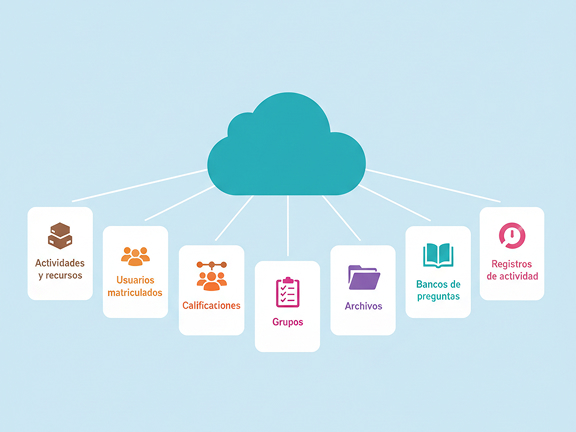
Step 3. Select the items you want to include
Moodle allows you to customize the backup content. You can decide whether to include:
- Activities & Resources
- Registered users
- Qualifications
- Groups
- Files
- Question Banks
- Activity Logs
If you only need to reuse the course structure, it usually isn’t necessary to include student data.
Step 4. Create the backup file
Click “Back Up.” When the process is complete, Moodle will generate an .mbz file that you can download and save in a secure location.
How to restore a Backup in Moodle
Just as important as creating a backup is knowing how to restore it when necessary. To do so, go to the “Restore” option and select the corresponding .mbz file.
During the process, you can choose from:
- Create a new course.
- Restore to an existing course.
- Merge content with another course.
Moodle also allows you to modify certain settings before completing the restore, such as the course name or dates.

Best practices for securing your Moodle platform
If you want to minimize risks, here are some basic recommendations:
- Schedule periodic automatic backups.
- It preserves several historical versions.
- Store the backups off the main server.
- Check periodically to make sure the restorations are working.
- Document the recovery procedures.
- Keep Moodle up to date.
Combining these measures provides much greater protection than relying solely on a one-time backup.
At 3ipunt, we help companies, universities, and training centers keep their Moodle platforms secure, up to date, and ready for growth. Because protecting education is just as important as delivering it.